Complete Guide: How to Connect Bank Account (Stripe Connect)
Step-by-step guide with screenshots to connect your bank account via Stripe and start receiving payments from buyers.
Table of Contents
- 1Required Information
- 2Step 1: Complete Seller Profile
- 3Step 2: Register Payment Account
- 4Step 3: Email & Password Confirmation
- 5Step 4: Google Authenticator
- 6Step 5: Business Information
- 7Step 6: Personal & Business Details
- 8Step 7: Bank Account & Payout Schedule
- 9Step 8: Public Details for Customers
- 10Step 9: Review & Submit
- 11Step 10: After Submission
- 12Understanding Account Status
- 13Common Problems & Solutions
- 14What You SHOULD Do
- 15What You Should NOT Do
- 16Frequently Asked Questions (FAQ)
Required Information
⚠️ New seller? Read How to Register and Start Selling on Bundl first.
Before starting, prepare: IC number (12 digits), active bank account number, phone number, complete address, date of birth, and MYTIN number if you have one.
Stripe will ask for your business type. Most sellers choose "Individual" — no need for SSM registration. If you have a registered business, choose "Sole proprietorship".
Ensure all information matches official documents. Discrepancies may result in rejection. Process takes 5-10 minutes, most applications approved instantly or within 24 hours.
Step 1: Complete Seller Profile
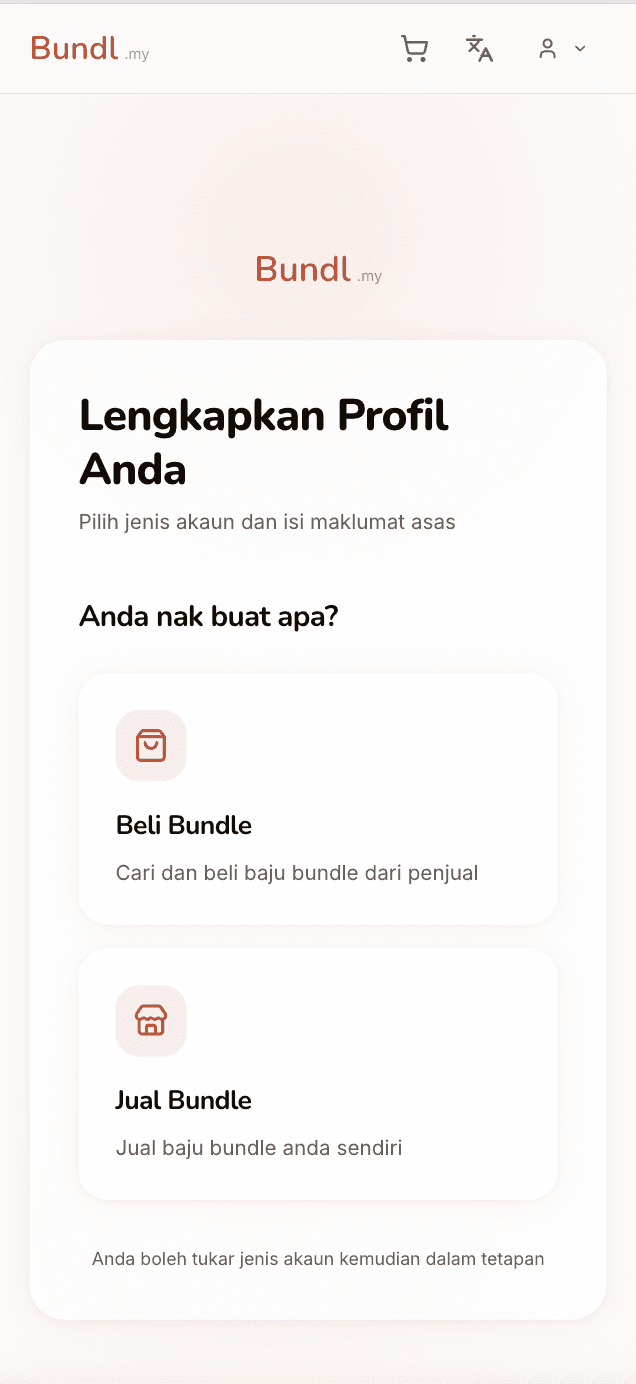
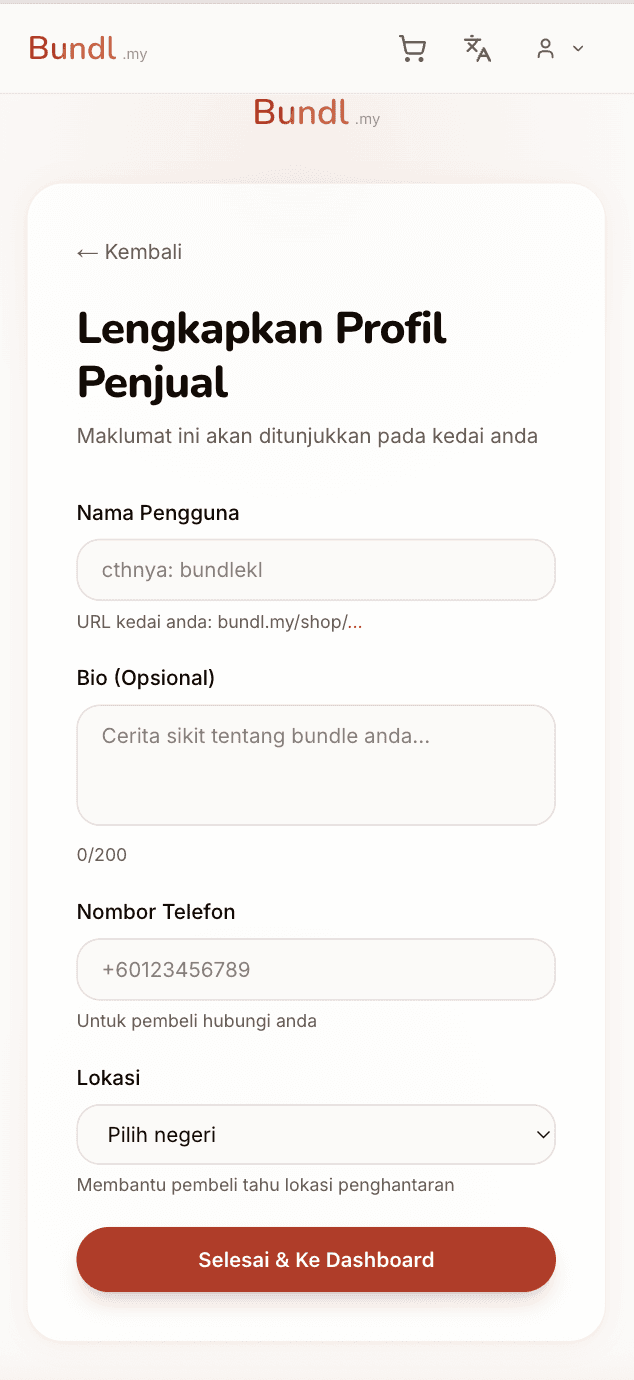
After registering and selecting "Sell Bundle", you'll be directed to complete your seller profile.
Choose a for your shop (example: bundlekl, vintagestore). This becomes your shop URL: bundl.my/shop/username
Write a about your shop (optional). Example: "Selling JP vintage, KR streetwear 📍 KL"
Enter your (format: +60123456789) and select your .
Once complete, click "Done & Go to Dashboard".
Step 2: Register Payment Account
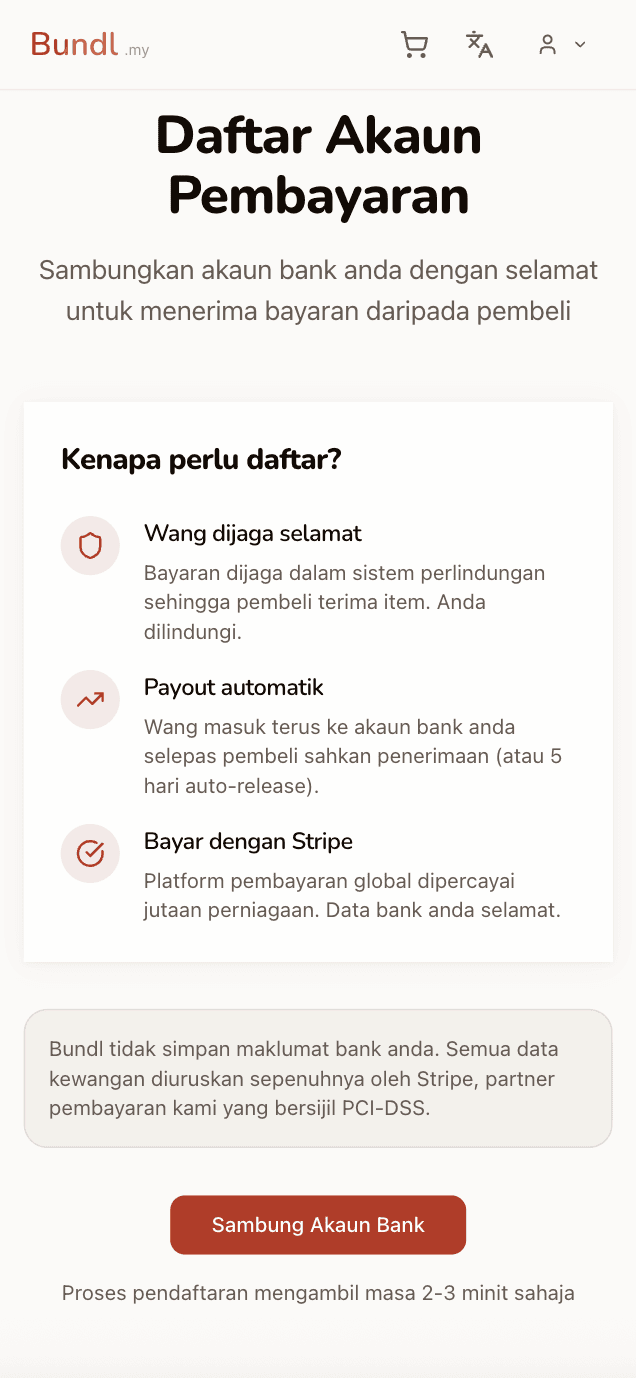
After completing your profile, you'll arrive at the "Register Payment Account" page.
Stripe is a global payment platform trusted by millions of businesses. Payments are held safely until buyers receive items, then automatically transferred to your bank (or 2-day auto-release after delivery).
Bundl doesn't store your bank information — all financial data is fully managed by Stripe (PCI-DSS certified).
The process takes 2-3 minutes. Click "Connect Bank Account" to get started.
Step 3: Email & Password Confirmation
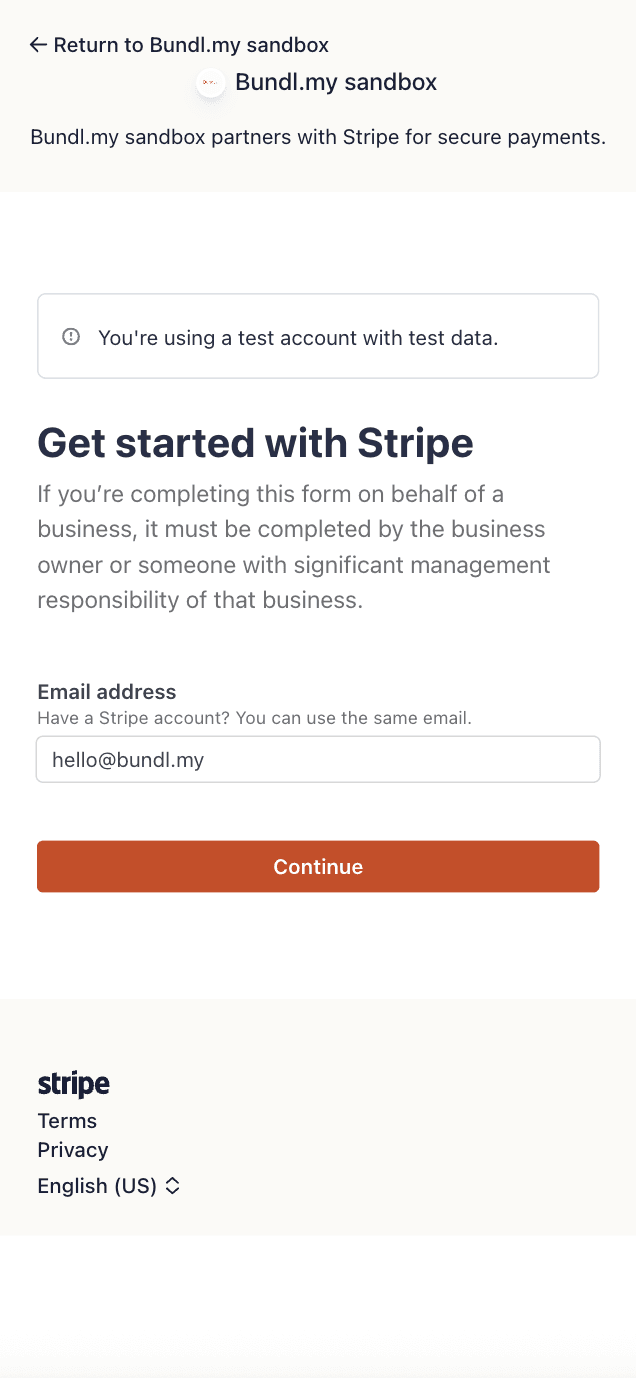
After clicking "Connect Bank Account", you'll be redirected to Stripe Connect (URL changes to connect.stripe.com — this is normal and secure).
Stripe will display the email linked to your Bundl account. Check it's correct, then click "Continue".
Enter your password for the Stripe account. If it's your first time, you may need to create a new password.
Don't close the window or refresh the page during this process. Keep it open until complete.
1 / 2
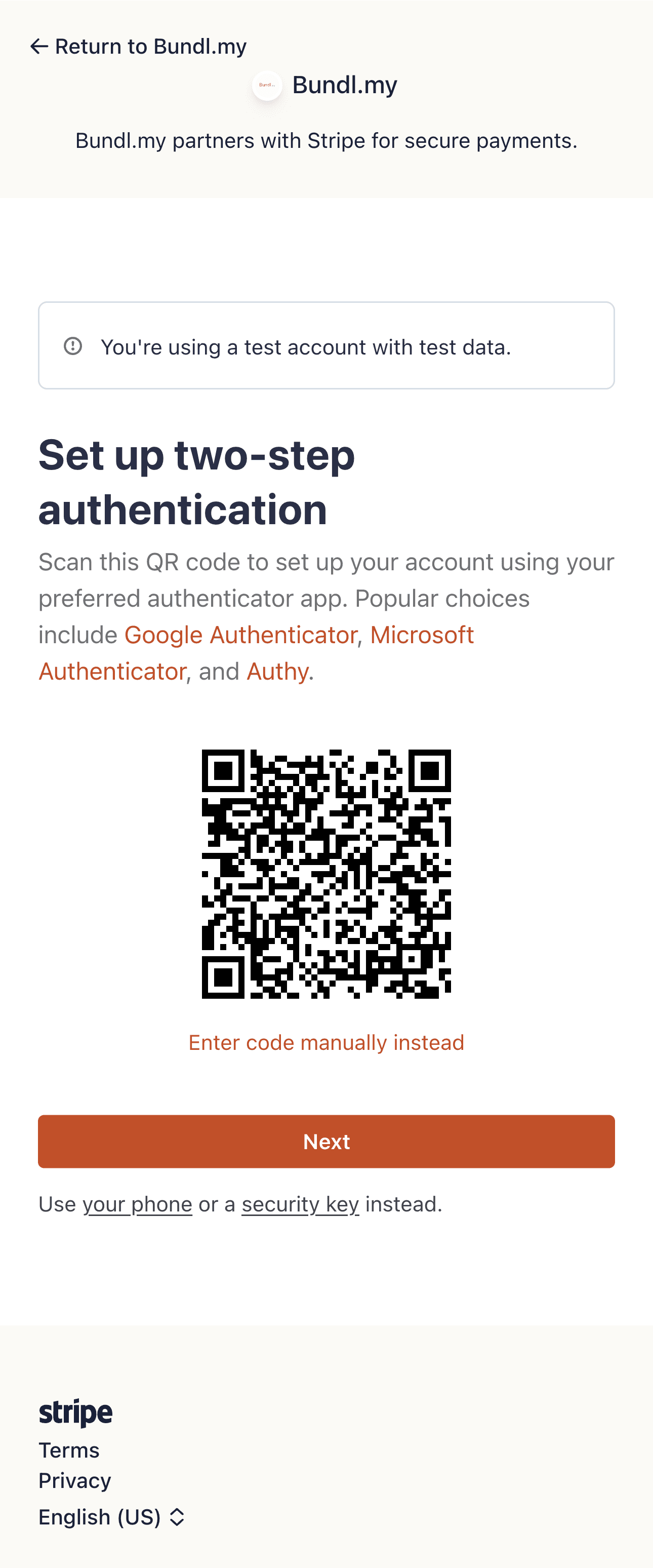
Step 4: Google Authenticator
Stripe uses 2FA (two-factor authentication) for security.
Stripe will display a QR code. Download Google Authenticator app (if you don't have it), then scan the QR code.
Open Google Authenticator app and you'll see a 6-digit code for "Bundl.my" or "Stripe". Enter this code in the form.
Code changes every 30 seconds. If it expires, just wait for the next one. Make sure your phone time is correct as the app syncs with server time. Save backup codes if provided for emergency access.
1 / 2
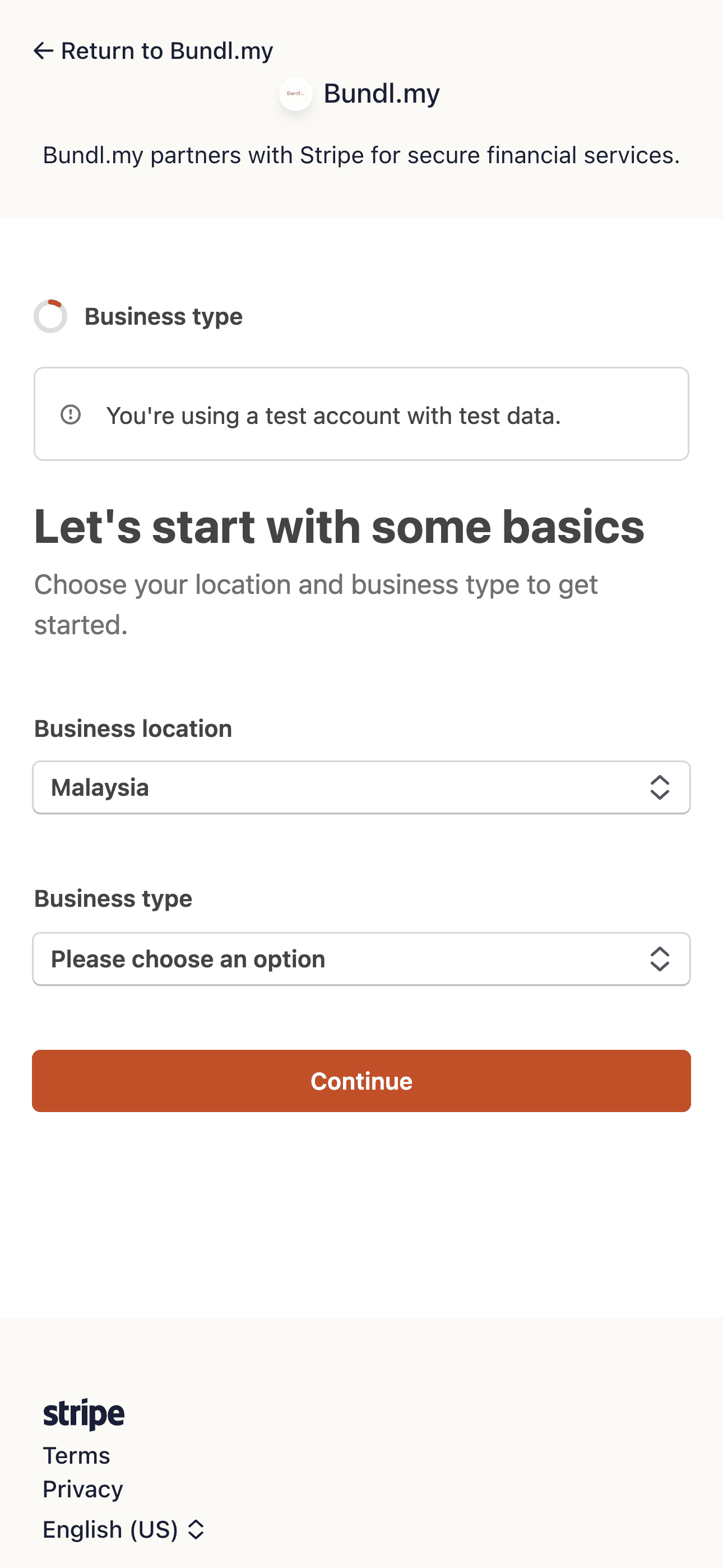
Step 5: Business Information
Stripe needs to know a bit about your selling activity.
Confirm : Malaysia (should be auto-selected).
Select . Stripe will show options: Individual, Sole Proprietorship, Corporation (Bhd/Sdn Bhd), Partnership, or Nonprofit organization.
Most Bundl sellers choose — no need for SSM registration. Stripe supports hobby sellers and part-timers.
If you have SSM registration, select "Sole Proprietorship", "Corporation", or "Partnership" based on your actual business structure.
Step 6: Personal & Business Details
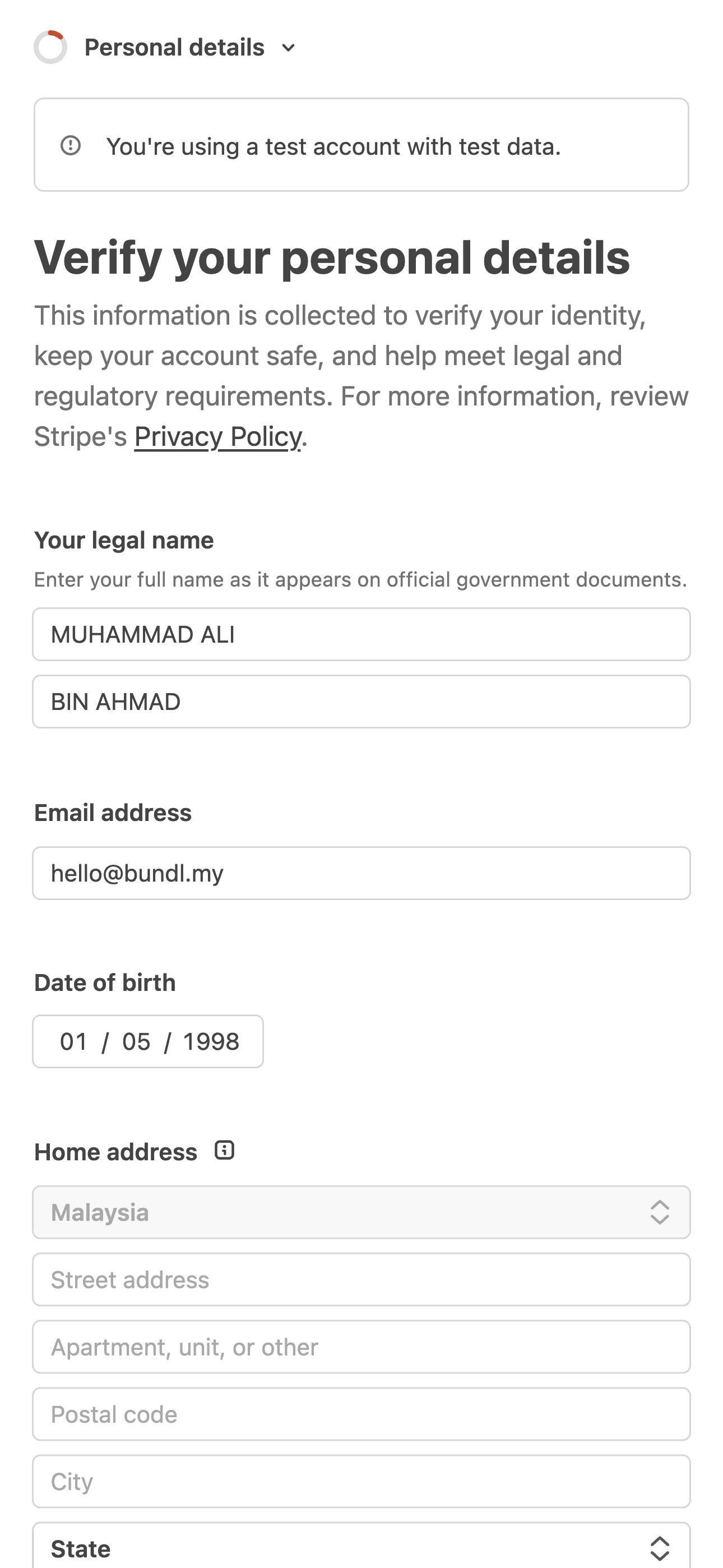
Now fill in your personal information.
Enter full name exactly as it appears on your MyKad (first name and last name separate). Email address is auto-filled from your account. Date of birth format DD/MM/YYYY (example: 01/05/1998).
For home address, enter complete address with street, postal code, city, and state.
— Your income tax number from LHDN, format 123456-A or SG12345678901. Can check on BE form or mytax.hasil.gov.my. If you haven't filed taxes or income is below RM34,000/year, you can skip or enter "N/A".
For other fields: SST Registration select "No" if not registered, Industry select "Clothing and accessories", Website enter bundl.my/shop/[username], and Product description write 2-3 sentences about what you sell.
1 / 2
Step 7: Bank Account & Payout Schedule
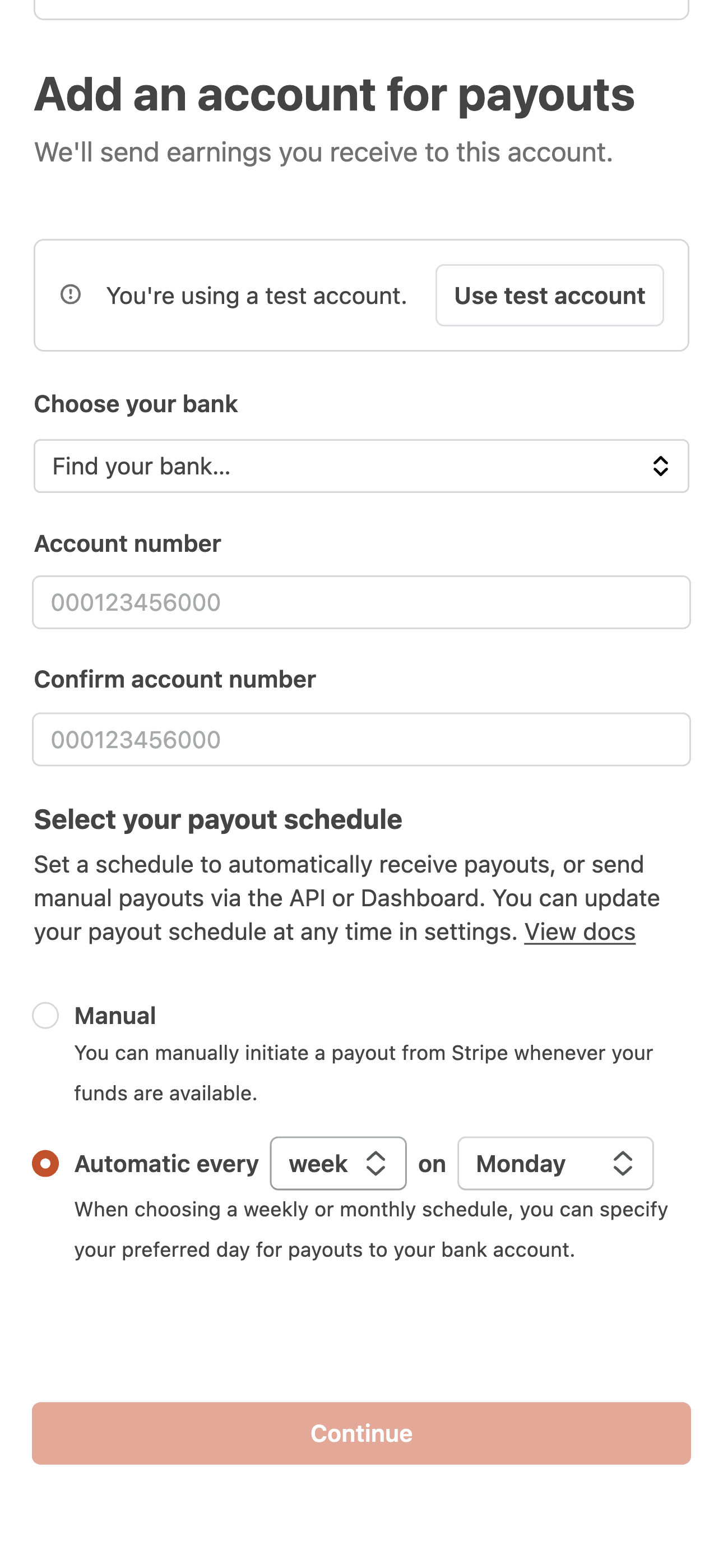
Setup where you want to receive payments.
Click "Find your bank..." dropdown to select your bank (Maybank, CIMB, Public Bank, RHB, Hong Leong Bank, Bank Islam, AmBank, UOB, OCBC, Standard Chartered, Affin Bank, BSN, and more).
Enter without dashes or spaces (example: 000123456000), then type it again to confirm. Important: one wrong digit and payment goes to the wrong account!
must match exactly with the name you registered with Stripe. Bank will verify this.
Choose : Manual (you control when to withdraw) or Automatic (Stripe auto-transfers — Weekly, Monthly, or Daily).
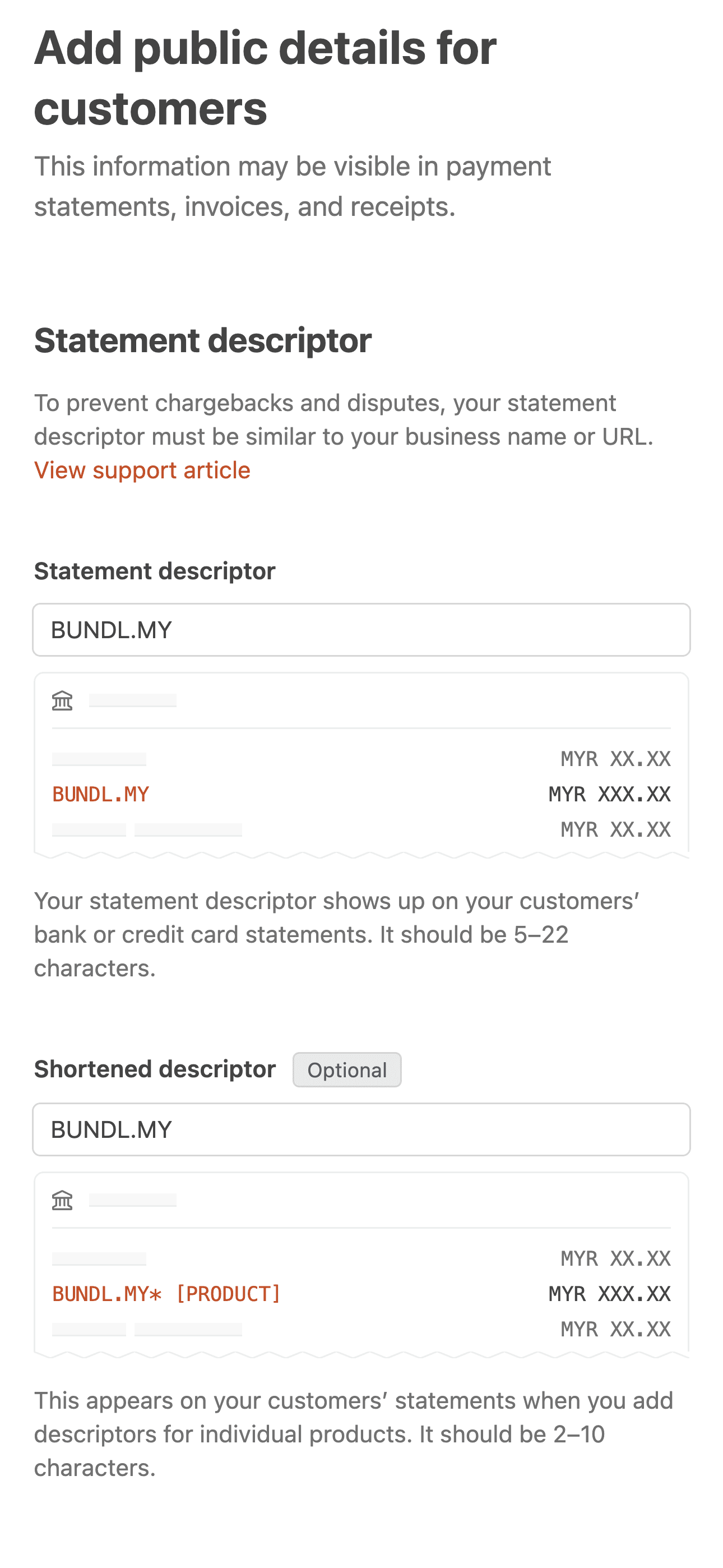
Step 8: Public Details for Customers
Stripe needs information that will appear to your customers.
— Name that appears on buyers' bank statements. Stripe will auto-set as "BUNDL.MY" (5-22 characters, helps prevent chargebacks).
(optional) — Shorter version for individual products, example "BUNDL.MY* [PRODUCT]".
— Enter phone number for customer support (format: +60123456789). This appears on receipts and invoices. You can choose to show or hide it by checking "Show phone number on receipts and invoices".
Make sure this information is consistent with your website or social media for credibility.
1 / 2
Step 9: Review & Submit
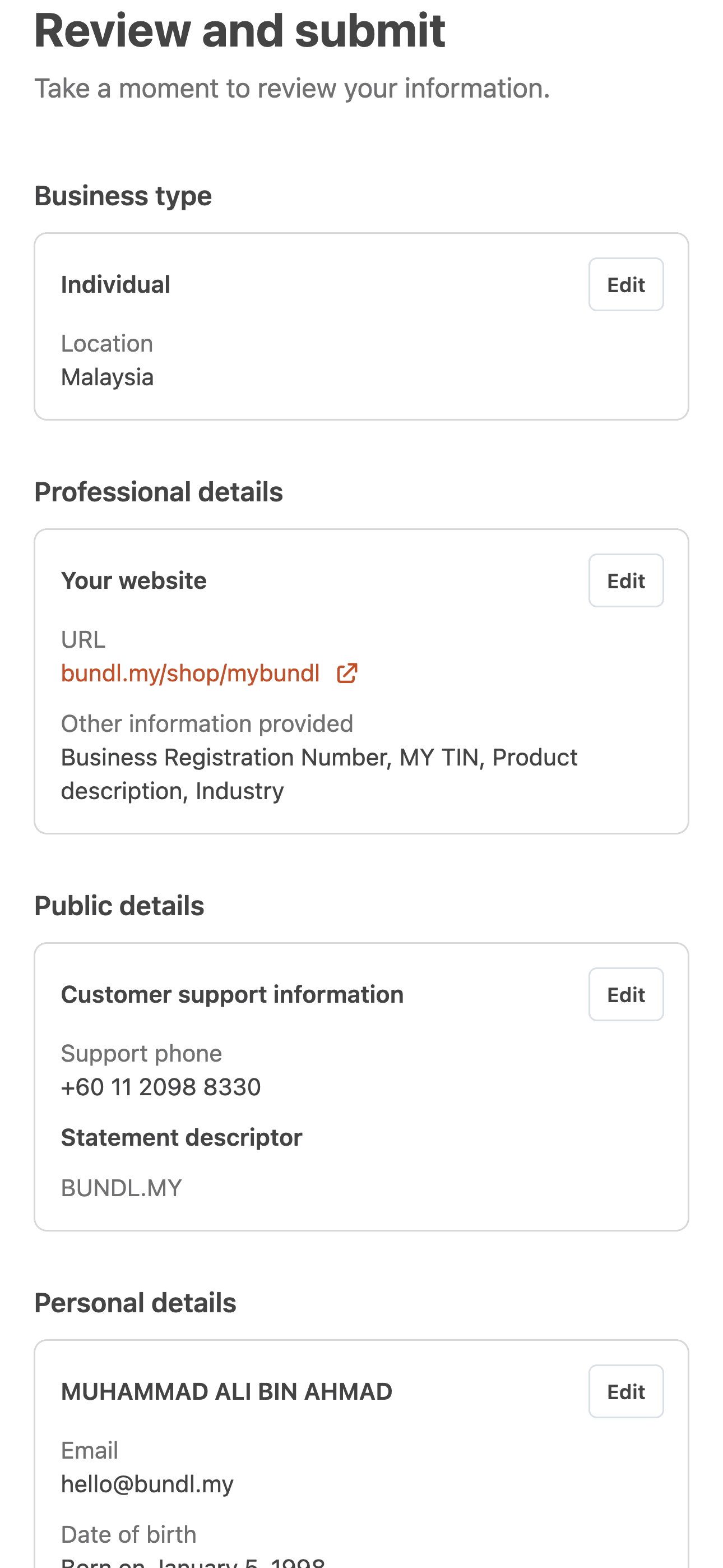
Last step! Review everything before submitting.
Check all details are correct: personal info (name, DOB, address), bank account, and contact info. If something's wrong, click "Edit" to fix it now.
Tick checkboxes to agree with Stripe Terms of Service, Connected Account Agreement, and Privacy Policy. Read the terms (at least skim through) before agreeing.
Once you've ticked everything, press "Submit" or "Agree and Submit". Stripe will process your application — most accounts approved instantly!
1 / 2
Step 10: After Submission
Application submitted! Stripe will review your application. Usually takes 1-2 days for simple applications, 3-5 days if additional checks required, or up to a week if documents needed.
Check status in Bundl dashboard: Green badge = approved (can start selling!), Yellow badge = pending review, Red badge = action needed from you.
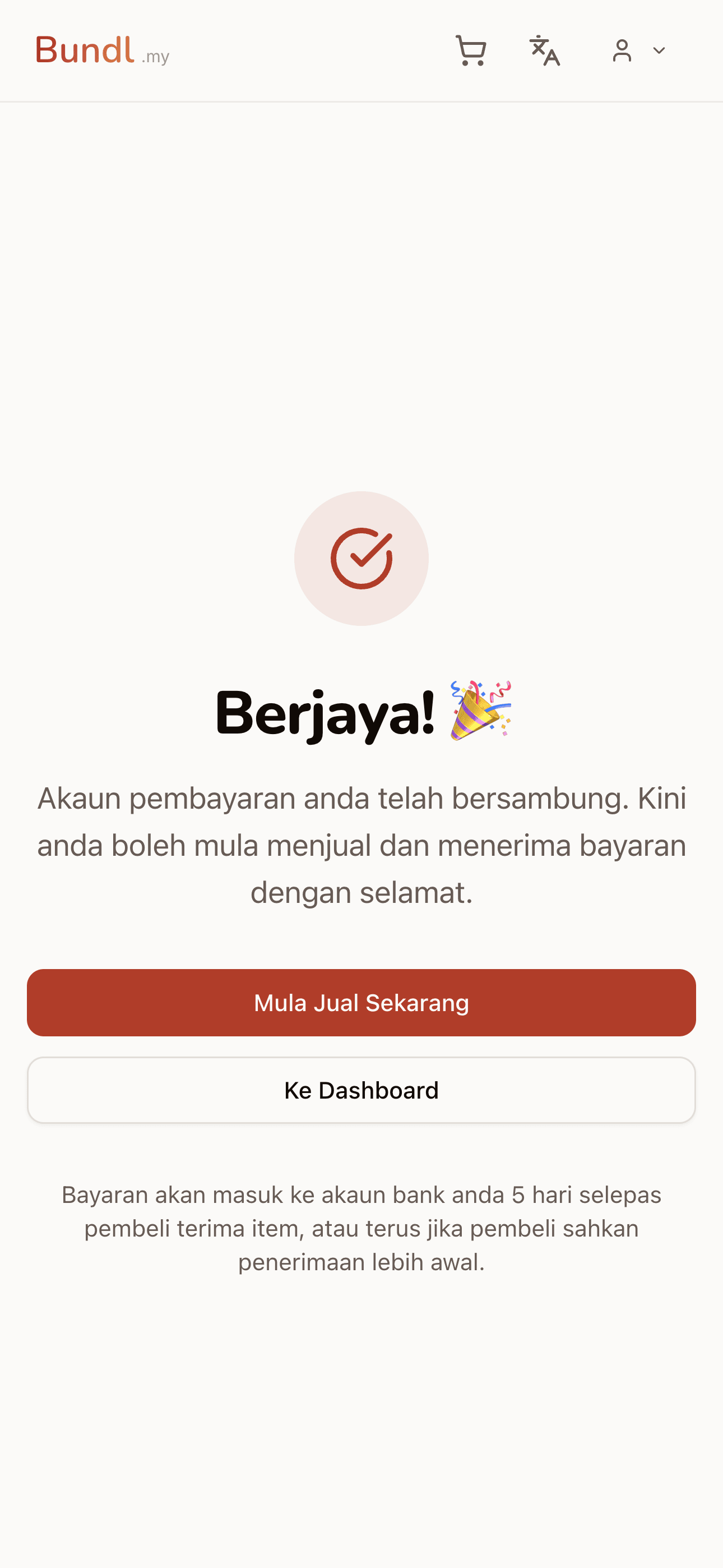
If approved, you'll receive email notification and dashboard will show "Payment: Active". Can proceed to create listings.
If Stripe needs more info, they'll email with specific requests. Upload documents through dashboard, usually resolves within 1-2 days.
Having issues? Contact support from dashboard.
Understanding Account Status
Your dashboard will display one of the following statuses:
— Connection not yet started. Listings cannot be purchased until bank account is connected.
— Stripe is verifying information. Process takes 30 minutes to 24 hours. Check email for any additional requests. You can prepare listings but cannot accept payments yet.
— Account approved. You can accept payments and start selling.
— Stripe requires additional information or documents. Check email for instructions. Follow the provided steps to change status to "Active".
— Issue with account. Contact Stripe or Bundl support for assistance.
Click the status card in the dashboard to access Stripe Dashboard and see detailed information about your account.
Common Problems & Solutions
"The information provided does not match our records"
Your name or IC differs from government database.
SMS verification code not received
Telco issue, wrong number, or SMS blocked.
"Bank account cannot be verified"
Wrong account number or account holder name doesn't match.
Stuck at "Pending" more than 24 hours
Stripe requires manual review or extra documents.
"Your account has been suspended"
Suspicious activity, multiple failed attempts, or fraud detection.
What You SHOULD Do
What You Should NOT Do
Frequently Asked Questions (FAQ)
Is Stripe setup free?
Yes, 100% free. All processing costs are covered by us — you don't need to worry about any additional fees.
Can I use someone else's bank account?
NO. Bank account must be in your own name and match the IC you registered. This is anti-money laundering law.
How long is the verification process?
80% of accounts approved instantly. 15% take 1-24 hours. 5% may need extra documents and take 2-5 days.
Is my information safe?
Yes. Stripe is PCI Level 1 certified (highest security standard). Data encrypted end-to-end. Stripe handles billions of dollars annually for companies like Amazon and Shopify.
Can I change bank account after setup?
Yes. Log in to Stripe Dashboard (link in Bundl settings), go to Banking -> Edit Bank Account. Process same as initial setup.
I'm under 18 years old, can I use Stripe?
No. Stripe and Bundl are only open to those 18 years and above. This is a legal requirement for financial transactions.
Do I need to register a company or SSM?
NOT required for individual sellers. Stripe Standard Account supports individuals. But if you have proper business registration, even better — you can claim tax deductions.
Do I need to pay income tax?
If annual income exceeds LHDN threshold (RM34,000 for individuals), you need to declare. Stripe will provide statements for tax filing. Consult a tax consultant for proper advice.